Getting started
Install AIASafe and make your first backup
Five minutes from start to finish. You don't need to know anything about backups: the app guides you and you just choose which folder to protect.
- 01
Download and install
Click the button above — your system is already selected. On Windows, open the installer and follow the steps. On Mac, open the .dmg, drag AIASafe to the Applications folder and launch it from there.
On Mac, always launch it from Applications: if you run it from the install disk or from Downloads, macOS keeps it read-only and it won't be able to update itself.
- 02
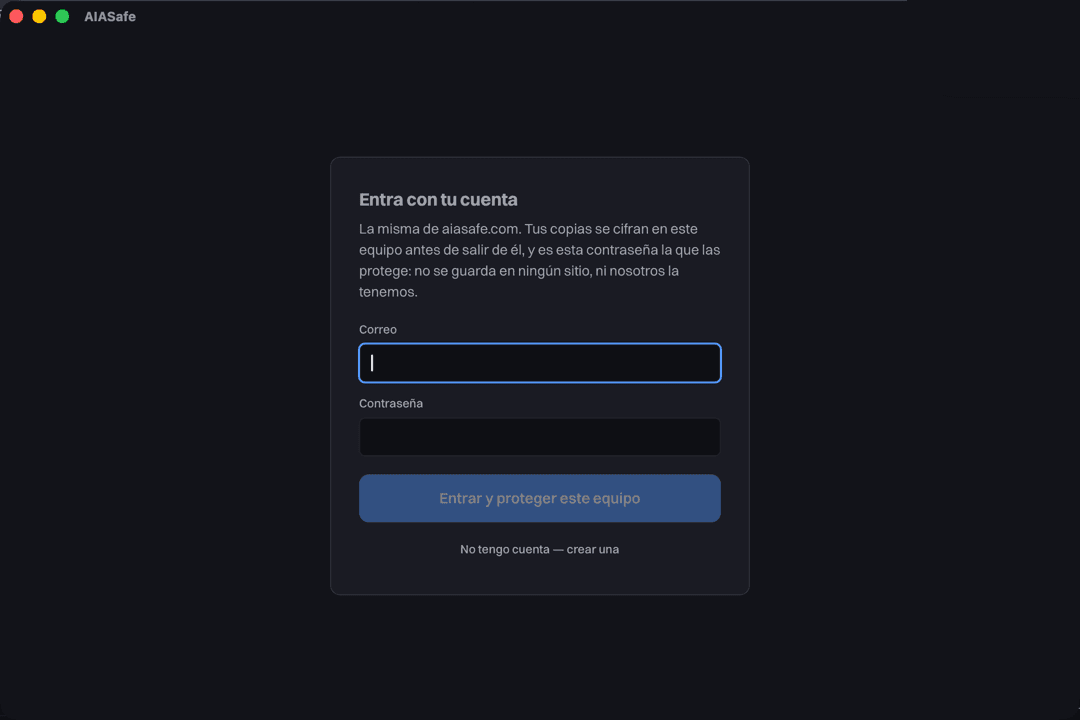
Sign in with your account
When you open the app it asks for the email and password of your aiasafe.com account — the ones you signed up with. No key to copy: your licence is applied automatically.
The key that encrypts your backups is created on this computer and never leaves it; your password only wraps it there. At aiasafe.com we store a fingerprint of the password, never the password itself.
- 03
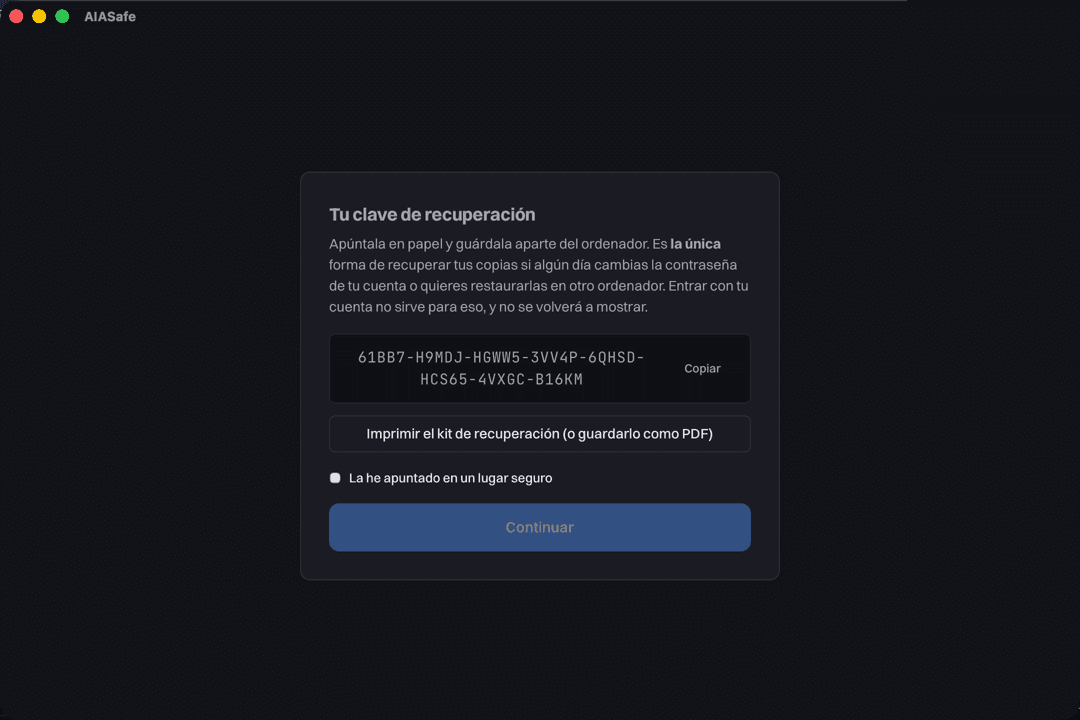
Write down your recovery key
It appears once and is never shown again. It's the only thing that lets you recover your backups if you ever change your password or want to restore them on another computer.
Write it on paper and keep it away from the computer; the print button gives you a ready-made sheet. Without it and without the password, nobody can read your backups — not even us. That's what makes them safe, and also what makes this step essential.
- 04
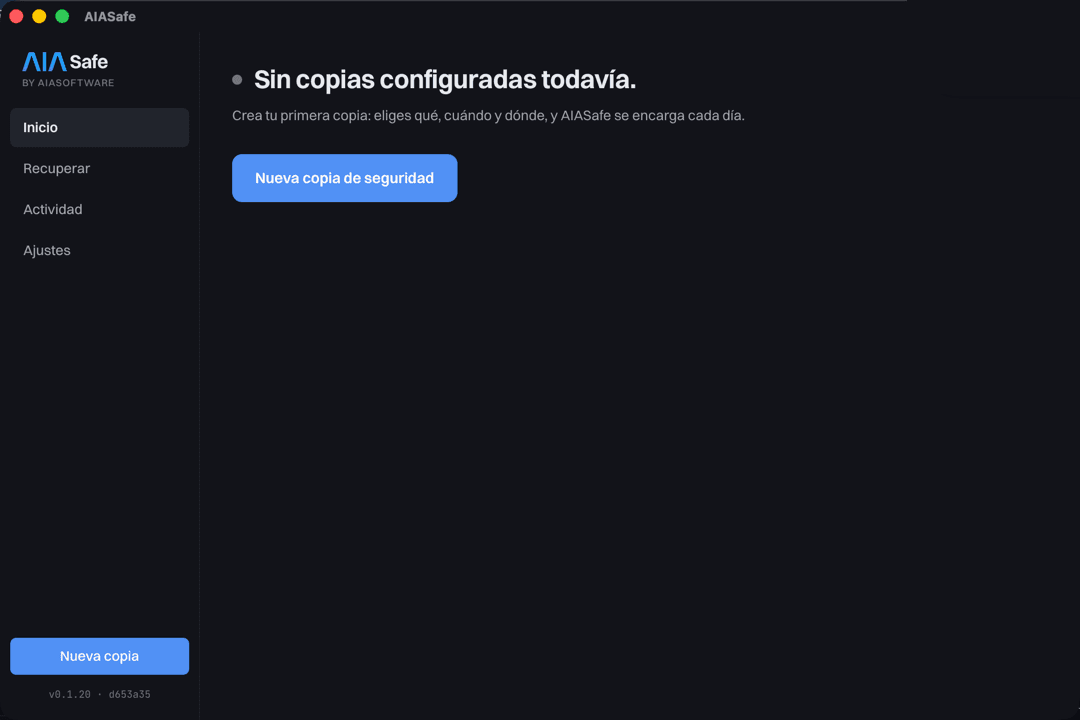
You're in
This is the main screen. No backups configured yet: you create one with the «New backup» button.
- 05
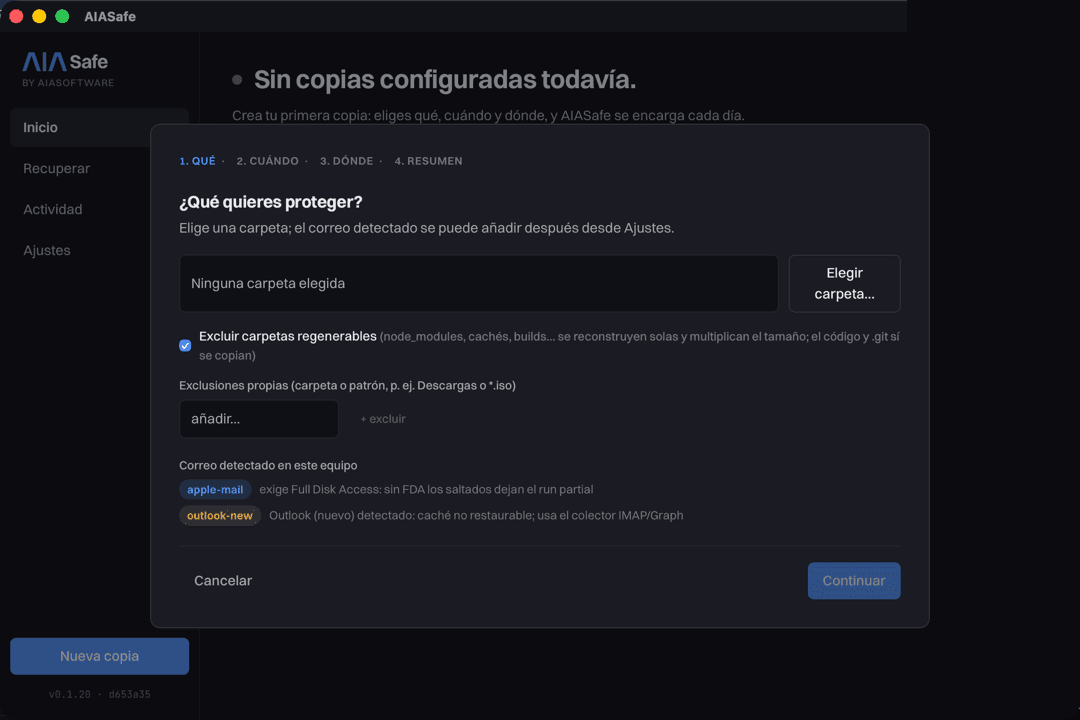
Choose what to protect
The wizard walks you through four questions: which folder, how often, where it's stored, and a summary. If you have email on this machine it detects it; mail backup is coming in a future version.
Start with a folder that really matters — documents, photos, work — and add the rest once you've seen the first backup finish.
What people usually ask here
- Where are my backups stored?
- Wherever you say: an external drive, your NAS, your Wasabi or OneDrive account, or our cloud if you get Pro Cloud. In the «Where» step the wizard tells you which ones can be sealed against deletion and which can't.
- What if I lose the recovery key?
- As long as you remember your account password and stay on the same computer, you can keep backing up and restoring. The key is needed the day you change your password or want to restore on another machine. That's why we insist on writing it down.
- Do I have to leave the computer on?
- No. Backups run in the background while the machine is on; if it was off at the scheduled time, it runs as soon as it's back. And if a backup is interrupted, it continues where it left off instead of starting over.